3mfcoloreditor✦

Bambu Studio workflow

How to Edit 3MF in Bambu Studio Without Losing Color

Edit 3MF in Bambu Studio when you need to inspect a project, adjust print settings, or prepare a plate without rebuilding the model from scratch. The right workflow depends on whether the color data is already embedded, whether the model is split into parts, and what you need to change before slicing.

Hands off to the studio
3MF color editing workflow prepared for Bambu Studio

Who uses this workflow

The same handoff looks different for a maker checking a download, a designer correcting a model, or a print operator preparing a plate.

Multicolor hobbyist

You have a finished 3MF with several colored objects and need to confirm that Bambu Studio reads the intended assignments.

Inspect the imported objects first, then make only slicer-level changes so the original structure remains clear.
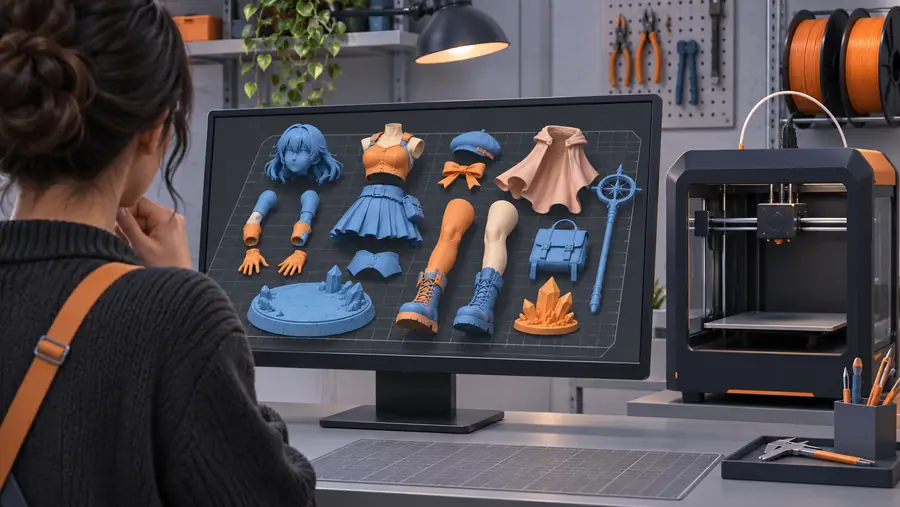
3mf editor online

Model designer

You need to alter the shape, split a part, or repair geometry before assigning filaments.

Use a modeling workflow for geometry, then export a clean 3MF for final preparation in Bambu Studio.

how to edit 3mf files in blender

Print operator

A shared project opens with unfamiliar plates, objects, or filament mappings and must be checked before slicing.

Review the project hierarchy, verify filament slots, and save a deliberate working copy before changing settings.

what is 3mf color editor online

STL archivist

You only need the mesh and do not need project-level colors, plates, or printer settings.

Treat conversion as a separate decision, because STL cannot preserve the full project context of a 3MF.

3mf to stl

Three concrete workflows

Choose the workflow that matches the kind of change you are making. Keeping inspection, geometry editing, and slicing as separate stages reduces accidental loss of project data.

  1. 1

    Inspect the imported project

    Open a copy of the 3MF in Bambu Studio and check plates, object names, part boundaries, filament slots, and the visible color result before editing anything.

  2. 2

    Make the smallest useful change

    For print preparation, adjust orientation, supports, filament mapping, or plate settings in Studio. For geometry or topology changes, move to a modeling tool instead of forcing the slicer to do that work.

  3. 3

    Slice and verify the handoff

    Preview the sliced result layer by layer, confirm that each visible color is assigned to the intended filament, and save the revised project with a new name.

Bambu Studio or a dedicated editor

These routes overlap, but they are not interchangeable. Use the side-by-side view to decide where the next edit belongs.

Bambu Studio 3MF color editor
Primary purpose Print preparation, slicing, plates, supports, and filament setup Inspecting or changing 3MF project content and color relationships
Best starting point A project that is already close to print-ready A project whose objects, colors, or metadata need investigation
Geometry edits Limited; it is not a full mesh modeling environment Depends on the editor; verify whether geometry changes are supported
Color assignment Useful for assigning filaments during print preparation Useful for reviewing or organizing color data before slicing
Preview strength Detailed slice and toolpath preview Project-level inspection before the final slice
Recommended save habit Save a new project copy after changes Export a deliberate handoff file and check it again in Studio

Example output

A successful handoff is not just a file that opens. It is a project whose parts, colors, filament choices, and sliced preview agree with one another.

Imported 3MF project before its color and object checks
Before: unverified import
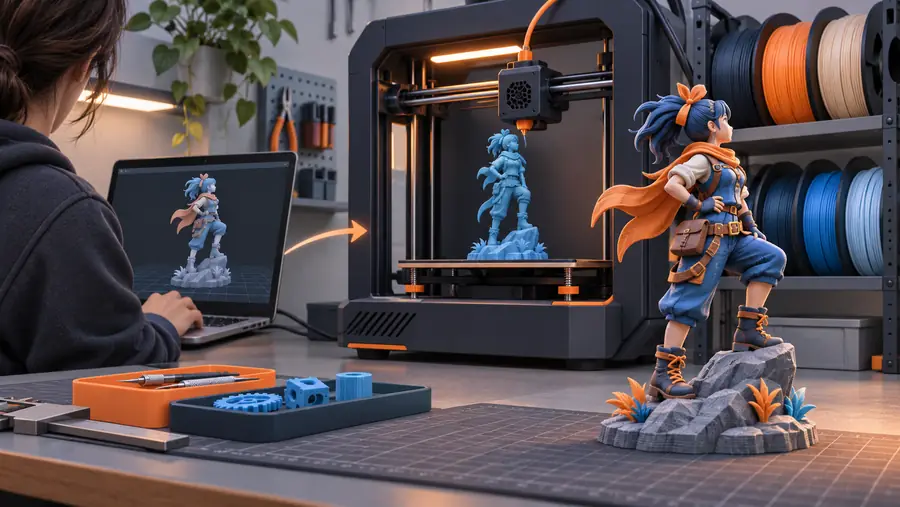
Checked 3MF project ready for slicer preparation
After: checked handoff

The after state should preserve the intended object structure, show the expected colors, and produce a preview that matches the planned print.

Before: unverified importAfter: checked handoff

Compliance notes

A careful workflow also means being honest about what Bambu Studio can and cannot preserve. These checks help prevent a visually plausible but structurally wrong export.

1

It cannot guarantee every 3MF feature survives unchanged

Different tools may interpret project metadata, plates, object groups, or material assignments differently.

What to do instead

Reopen the saved file in the destination tool and compare the hierarchy, colors, and preview before printing.

2

It is not a replacement for mesh modeling

Bambu Studio is not the right place for complex topology edits, sculpting, retopology, or detailed shape reconstruction.

What to do instead

Edit the geometry in a suitable modeling tool, then export and inspect the new 3MF in Studio.

3

A color preview is not proof of filament availability

A displayed color can represent an assignment or visual label rather than a filament physically loaded in the printer.

What to do instead

Match every assignment to the actual filament slots and verify the sliced preview before sending a job.

4

Saving over the source can hide mistakes

A quick overwrite makes it harder to compare the original project with the edited handoff.

What to do instead

Keep the source unchanged and use a descriptive new filename for each checked revision.

Make the handoff easier to check

Describe the exact 3MF change you need, then use the studio workflow to identify whether the task belongs in Bambu Studio, a color-focused editor, or a modeling tool. The goal is a reliable handoff, not an irreversible guess.

  • Separate geometry edits from print-preparation edits
  • Check colors and filament assignments before slicing
  • Keep the original project as a comparison copy
Plan my 3MF workflow

Scenario FAQ

These answers focus on the practical questions that come up when a 3MF project is opened, changed, and prepared in Bambu Studio.

Yes, Bambu Studio can be used to inspect and prepare a 3MF for printing, including plate arrangement, orientation, supports, and filament-related setup. It is not a general-purpose 3D modeling editor, so substantial geometry changes may require another tool.

Open a copy of the project and first verify the object hierarchy, part boundaries, and filament assignments. Make the smallest necessary change, then inspect the sliced preview layer by layer before saving a new project file.

A 3MF can carry project and material information that another application interprets differently. Check whether the colors are assigned to separate parts or are only visual labels, then remap them to the intended filament slots and confirm the preview.

Use Bambu Studio for print preparation and use a modeling tool for changes to topology, proportions, or detailed geometry. After exporting the revised model, reopen the resulting 3MF in Studio and verify the parts, colors, and slice.

You can export mesh geometry in workflows that support it, but STL does not preserve the complete 3MF project context, including plates, filament assignments, and other metadata. Convert only when you need a geometry-only file and no longer need those project details.

Explore 3D studio
Explore 3D studio